Editing the origin of nodes and setting the data type for vertex attributes
Editing the origin of nodes
Use an Empty Node node to set the origin of a 3D and 2D nodes and to create an external transformation pivot point. This is particularly useful when you want to edit the origin of a mesh, but want to keep the pivot point centered to the mesh. When the pivot point of a mesh is centered to the mesh, you can use the half-float accuracy for the vertex attributes. When you use half-float accuracy for vertex attributes, instead of float, you decrease the mesh data size by half.
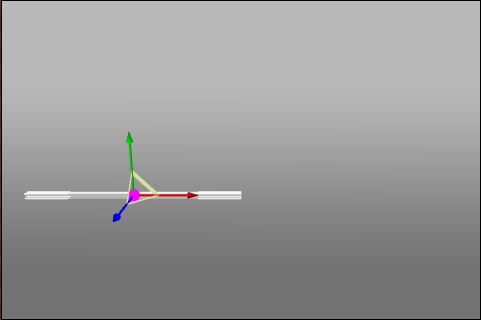
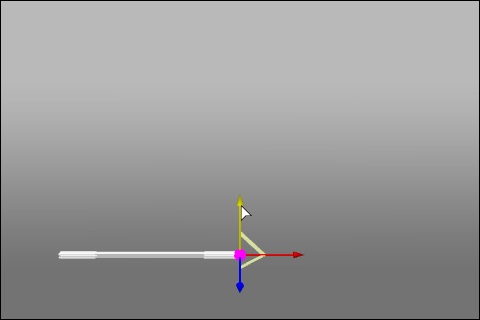
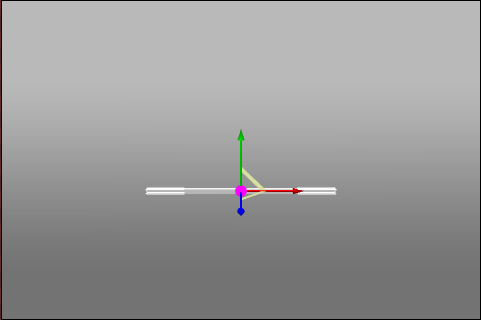
For example, edit the origin of a node when you want to reposition the pivot point of a gauge needle.
To edit the origin of a node to create an external transformation point:
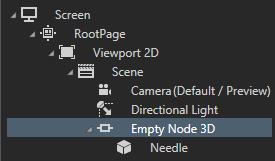
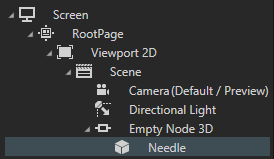
In the Project create an Empty Node node and add to it a node the origin of which you want to edit. For example, use a Box, a Sphere, a Plane, or a Model that points to the mesh whose origin you want to edit.
In the Project select the node the origin of which you want to edit do either of these:
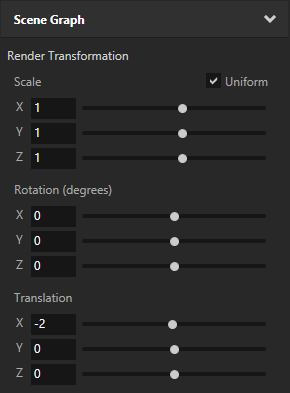
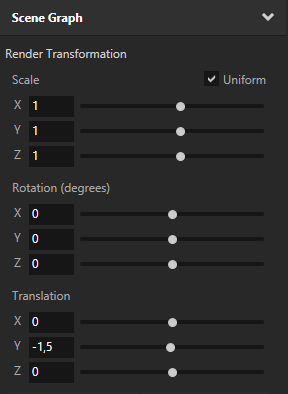
In the Properties add and set the Render Transformation property to place the node to the position of the new origin. For example, if the node is 4 units wide and you want to set the origin of the node to the rightmost side of the node, set the Render Transformation property Translation X attribute to -2.
In the Preview enter the Edit mode, set the target transformation to Render Transformation (), and use the Node tool to place the node to the position of the new origin. See Editing your application in the Preview.
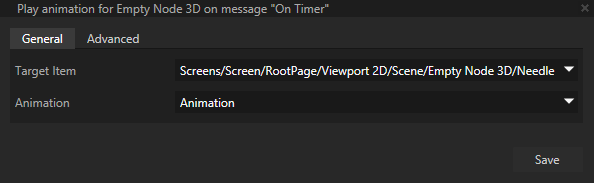
To use the new origin of the node, target the node the origin of which you edited. For example, to animate the node around the new origin, set the Target Item property of the animation to the node the origin of which you edited.
(Optional) In the Project select the Empty Node and to position the node the origin of which you edited do either of these:
In the Properties add and set the Render Transformation property to place the Empty Node node where you want to position its child nodes.
In the Preview enter the Edit mode, set the target transformation to Render Transformation (), and use the Node tool to place the Empty Node node where you want to position its child nodes.
Setting the accuracy of vertex attributes
By default Kanzi uses half-float accuracy for the vertex attributes.
To change the default value for the accuracy of vertex attributes, in Kanzi Studio select Project > Properties, and in the Properties set the Vertex Attribute Data Type property.
To change the vertex attribute accuracy for a single mesh, for example, when you need better accuracy for that mesh, in the Library > Meshes select the mesh and in the Properties set the Vertex Attribute Data Type property to Float.
 ), and use the Node tool to place the node to the position of the new origin. See Editing your application in the Preview.